Please don't be daunted by the length of this page! The instructions are easy to follow, and once you start using the
synchroniser it will soon become second nature.
The information on this page shows you how to keep a mobile copy of your My Documents folder and all
its contents on your flash drive (or on a USB portable hard disk drive).
Why would anyone want to do that?
It's a useful backup in case your computer is lost or stolen, or you want to recover the previous version of a document
that you've messed up.
When away from your computer, you can plug your flash drive into any other computer, and work on your documents (or
create new documents) there. You can copy the changed documents and new documents from the flash drive onto your computer
when you return.
If you have a second computer (at work, for instance) you can keep a complete copy of your My Documents folder
on that other computer. That provides extra convenience (because the documents are there whether you have your your
flash drive with you or not) and an extra backup copy in case of loss.
Potentially you're changing your documents on your main computer, on your flash drive, and on your other computer(s).
It's hard to remember where the most up-to-date copy of any document is. So you need a program to help you, and that's
what this page is all about.
The basic technique is called synchronisation. Synchronisation means examining two copies of My Documents (one
copy on the computer and one copy on the flash drive) and making them exactly the same. A synchroniser is a program
that does that for you. It tells you which files you've created, changed, and deleted since the last synchronisation.
If there are two different versions of the same file it knows which is the old one and which is the new one. When you
see that list of changed files you'll often think "ah yes, I'd forgotten I'd changed that one" — that's
why you need a program to help you. (When you see the list of files to be synchronised, you might realise that something's
not quite right. You can go and make changes to your documents, and then restart the synchronisation process). When you're
happy with the list of files to be synchronised, you click on the Synchronize Files button and watch
the folders being synchronised automatically. You can now be sure that your computer and the flash drive contain identical
copies of your My Documents folder, with the latest version of every document.
Naturally you will have organised the documents in your My Documents folder into sensible sub-folders
so that you can keep track of them. The copy on your flash drive will have exactly the same folder structure and document
names. The synchroniser program will display the list of files to be synchronised in exactly the same sub-folders, making
it easy to see what's changed where. If you're away from home and working with your flash drive, the folders will look
just like they do on your own computer.
The synchroniser that I recommend is the AJC
Directory Synchronizer. It costs about £20 (UK) (yes, that might be more expensive than the flash drive, but
it's worth every penny). You can download a free trial copy, and if you don't think it's worth buying, you don't have
to pay anything.
Naturally there are lots of possible variations on the techniques descried on this page, which the adventurous computer
user will be able to spot without any help from me.
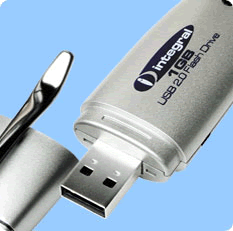
Your flash drive
"Flash drives", "pen drives", "memory sticks", "dongles"...
the names are endless. I'll just call them flash drives.
The most important
feature of a flash drive is its capacity. Capacities are measured in megabytes (MB) and gigabytes (GB). 1 GB is the same
as 1,000 MB.
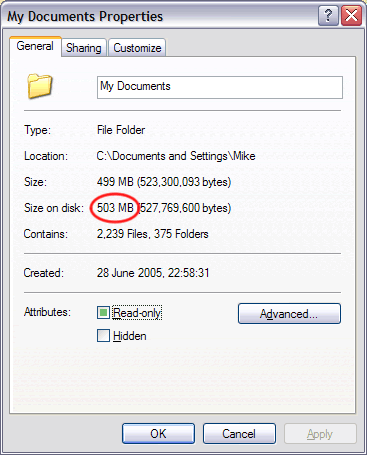
To find out how big a flash drive you need, go to My Computer, right-click on My Documents,
then click on Properties, and select the General tab. Ideally you'd use a flash drive
large enough to hold all your documents with extra room for future expansion.
If you're buying a new flash drive, it's probably not worth getting anything less than 1 GB, and that will easily
be big enough for most people's needs. Flash drives are available up to about 4 GB. Note that flash drives are improving
all the time and what I'm saying here applies
in summer 2007.
If a flash drive isn't big enough for you, you can get USB hard disk drives up to any capacity you
could conceivably want. The techniques described on this page can be applied
to all of them, but higher capacity mean higher cost and less portability. Actually, if your My
Documents folder is that big, it's likely that almost all of the bloat is media files (music, photos, videos,
and so on) in the My
Music, My
Pictures, folders (etc). If you left off those media files, the other documents would fit on a flash drive. This
is getting into advanced territory, but take a look at the Being
selective section
at the bottom of this page, to see how to exclude those media files from the flash drive. Bear in mind that you could have
a flash drive to hold all your documents except the media files, and a hard disk drive to hold absolutely everything.
In the synchroniser you'd define two projects, one for each drive.
For the remainder of this page I'll simply refer to flash drives, and everything applies equally to a larger USB drive
if that's what you're using instead.
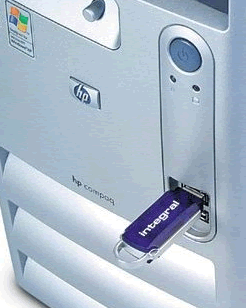
When you plug your flash drive into your computer for the first time, wait patiently for up to about a
minute while Windows installs the software required for it to work. You might have received a CD with your flash drive,
but if you're using a modern version of Windows (XP, Vista, 7), you won't need it. The flash drive will appear in My
Computer, usually as an extra removable disk. Its drive letter depends on what you already have installed. It's
usually E: or F:.
Preparation
Download your free trial copy of AJC Directory Synchronizer from this
page. (You might be downloading a later version than
mine, and it might not work exactly like the description on this page. I'd be pleased to hear about any significant differences.)
Install the AJC Directory Synchronizer program on your main computer.
Plug the flash drive in.
Create a folder on the flash drive named John Smith's Documents (substituting your own name, of course).
This will contain a copy of My Documents. If you lose your flash drive, the folder name might help you
get it back again.
Start the AJC Directory Synchronizer program. The program will offer to create a new project. Click Next to
start the New Project wizard.
The two folders to be synchronised will be displayed on the left and right sides of your screen. One of these will
be the My Documents folder on your PC and the other will be John Smith's Documents folder
on the flash drive. You need to specify which folder will be on which side of the screen. When you're synchronising files
it's important to remember which way round the folders are, so choose carefully. My preference is to make the positions
correspond to the physical position of the flash drive, relative to the screen, when it's plugged in. On some computers
the flash drive can be plugged into a USB socket on the left side of the monitor casing, so I make the left folder the
flash drive. On other computers the flash drive can be plugged into a USB socket on the right-hand side of the keyboard,
so I make the right folder the flash drive. If you don't have a keenly-developed sense of direction you might not care
either way.
Have you decided? Good. Now, so that I can use the words "left" and "right" on this page in accordance
with the layout you've chosen, click on one of the buttons below, and the page will change to reflect your choice.
Computer on the left, flash drive on the right
Flash drive on the left, computer on the right (if you don't care, choose this one)
Now you're ready to start specifying the synchronise operation in the directory synchroniser program. You might find
it easier if you print this page (landscape format probably works best) and refer to it while entering your settings.
Complete the New Project wizard as follows:
Stage
Actions to take
Select locations
Click on the red folder
icon, select the My Documents folder on your computer, then OK.
Click on the green folder
icon, select the John Smith's Documents folder on your flash drive, then OK.
To make it easier to remember which is which, you can change the image for each folder. This is optional:
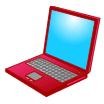
If it's a laptop rather
than a desktop PC, click on the red "computer" image on the left,
then click on the laptop image, then OK.
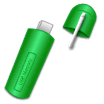
Click on the green "computer" image
on the right, then scroll down and click on the flash drive image, then OK.
Check the screen to see that everything is as you want it, then:
Title and settings
Enter a title and description for this project if you like, but I don't find them at all useful. You'll give
the project a name later on, and that's enough really.
Choose how you want to use this software
The Prepare for a compare or synchronize now option is already selected.
The Prepare Synchronize List Wizard starts.
Introduction
Read the introduction if you like.
Choose a task
The Synchronize or compare option is already selected.
Choose direction
Click on the double-headed arrow ("Both
ways").
Backup archive
Read the text and decide whether you want to use backup archives or not (I don't).
Options
Select this option.
Select this option.
Prepare to generate a synchronize list
I recommend all three options on this page, which are already selected.
Wait while the program compares the two folders and lists the differences. Because the John Smith's
Documents folder on the flash drive contains no files, every file in My Documents will
be listed.
The red arrow
by each file name indicates that the program is proposing to copy the file from the left (computer)
folder to the right (flash drive) folder.
Take a moment to look at the hints on the screen before clicking OK to remove them.
To start copying the files click on:
The program will copy all your files onto the flash drive, listing them as it goes. When the process is complete
the John Smith's Documents folder on the flash drive will contain exactly the same folders and files
as the My Documents folder on the computer.
Take a moment to look at the hints on the screen before clicking OK to remove them. You'll
find that the program pops up quite a lot of these hints and warnings. When you've seen enough of any
of them, tick the check box before OKing it, and it won't appear again.
Finally, click on the "floppy disk" icon to save your
settings for when you next want to synchronise. Enter a memorable name such as Synchronise flash drive.
Preparation is now complete and you can close the program.
Resynchronising the flash drive
Whenever you've changed or deleted any files on the PC, you can run the synchroniser program again, to make the corresponding
changes on your flash drive. If you want access to your documents while away from your computer, remember to do this before
leaving. If the flash drive is being used as your backup, synchronise whenever the flash drive and the computer have got significantly
out of step (at the end of each day's work is good).
When you start the synchronizer program it will offer you the Synchronise flash drive project that you saved
earlier. Select that project and the program will compare the contents of the computer and the flash drive again, listing
any differences that it finds. The differences indicate the changes that you've made since the previous synchronisation.
Each difference is indicated by a symbol:
A yellow folder is one that you've changed the contents of.
A right-pointing yellow arrow indicates a file that you've changed, which will be copied to
the flash drive, overwriting the older version. Note that if you saved a file without making any changes to it, that
still counts as "changed". The synchroniser works by checking the date and time that you last saved the file.
A red folder is one that you've created, which will be copied to the flash drive.
A right-pointing red arrow indicates a file that you've created, which
will be copied to the flash drive.
A green folder is one that you've deleted, which will be deleted from the flash drive.
A green waste bin indicates a file that you've deleted, which will be deleted from the flash
drive.
If you've renamed or moved a file or folder, the synchroniser program sees this as a new folder/file
and a deleted folder/file. So don't be unnecessarily alarmed by unexpected deletions. You should be able
to look through the list of files and see the "deleted" folder/file as a "new" folder/file somewhere
else.
You might see changes on the synchronise list that you didn't mean to make. For instance, with a laptop's trackpad it's
quite easy to unintentionally move a folder. Or you might have forgotten to delete a new file that started work on and
abandoned. The simplest thing to do is to change My Documents to the way it ought to be (using My
Computer or whatever program you usually use), exit the synchroniser program, and start it again.
You can jog your memory about changes that you've made by comparing the old and new versions of a file. Right-click on
the yellow arrow (or anywhere else on the line) and choose File Differences. This works well for text
files such as Microsoft Word but less well for more complex files such as spreadsheets. The differences will be displayed
in a separate window. Consult the help for information about the differences display. When you've finished with it, close
the window to see the synchronise list again.
When you're happy with
the synchronise list, click on Start
synchronize and
observe the report of files being copied or deleted.
Re-synchronising your computer
If you plug your flash drive into another computer, you can work on your documents exactly as you would on your own computer.
You don't need to copy the documents into the other computer first. When you get back to your computer, you can run the
synchroniser program again, to make the corresponding changes on your computer.
When you start the synchronizer program it will offer you the Synchronise flash drive project that you saved
earlier. Select that project and the program will compare the contents of the computer and the flash drive again, listing
any differences that it finds. The differences indicate the changes that you've made on your flash drive since the previous
synchronisation. This time you'll see some different symbols:
A yellow folder is one that you've changed the contents of.
A left-pointing yellow arrow indicates a file that you've changed, which will be copied to
your computer, overwriting the older version.
A green folder is one that you've created, which will be copied to your computer.
A left-pointing green arrow indicates a file that you've created, which
will be copied to your computer.
A red folder is one that you've deleted, which will be deleted from your computer.
A red waste bin indicates a file that you've deleted, which will be deleted from your computer.
Two-way synchronisation
If you don't synchronise often enough, you can find that you've changed some files on the computer and some files on
the flash drive. The synchroniser program can cope with this (most of the time: see below) but it can get a bit
confusing, so it's best to synchronise more often.
If two-way synchronisation is required because you've changed files in both places, you'll get a mixture of the two sets
of symbols described above - arrows pointing left, arrows pointing right, red bins, green bins, etc. The arrows (changed
files) are pretty easy to understand, but with a deletion it's not obvious where the file or folder is going to be deleted from.
Look at the colour of the bin and refer to the red and green images at the top corners of the screen.
A yellow arrow pointing both ways indicates a problem.
Since you last synchronised, you've changed the file on your computer and the same file on your flash drive. Even
if you made exactly the same change to both files, the "last saved" times will be different, so they are regarded
as "changed differently". There are several possibilities here:
You want to keep one version and throw the other away: Right-click on the double-arrow and choose Transfer/Reverse
Transfer Direction. The arrow changes to a one-way arrow. To reverse the arrow, do the same again.
You want to examine the two versions and create a new master version containing both sets of changes: Right-click on
the double-arrow and choose Open File then Both. Create your master version and save
it either on your computer or on the flash drive. Exit the synchroniser program and run it again. Next time, proceed as
in option 1 above.
You'd rather not think about this right now but you'd like to synchronise the other files on the list anyway. Right-click
on the double-arrow and choose Remove From Synchronise List. Proceed with the synchronisation as usual.
When you next run the synchroniser, the same file will appear on the list again, with its both-ways arrow. Sooner or
later you'll have to deal with it.
More than one computer
If you want to keep identical copies of your documents on an additional computer as well as the flash drive (a laptop, for
instance), install the synchroniser program on the other computer[*] and set it up following the instructions on this page.
If the second computer is new and My Documents has none of your documents in it, the first-time synchronisation
will be pretty straightforward (all files to be copied from the flash drive to the second computer). But if the other computer
already has documents on it, the first-time synchronisation will be two-ways, as described above. Proceed with caution!
[*] If the second computer is entirely for your use or primarily for your use, and you use the synchroniser program
on only one computer at a time, one licence payment will cover both computers. Otherwise you should purchase an additional
licence.
Of course if your two computers can be networked together, it's possible to synchronise them without using a flash drive
at all, and without installing the synchroniser program on the second computer. That isn't really the subject of this page,
but if you've understood everything so far, you should have no difficulty in working out what to do. There's basic advice
on connecting your computers on this AJC
web page.
Three computers? No problem. As many as you like.
More than one flash drive
If you're using your flash drive for backup purposes you might consider having two of them, or even three or more. If you
do this, it's very important to create a separate project for each flash drive, even if the project settings are
absolutely identical for all of them. This is because after each synchronisation the program "remembers" the
dates and times of all the files, so that it can tell when a file has changed. It has one "memory" for each project.
If you use the same project for two flash drives, the "memory" will be wrong for one of the flash drives, and the
list of files to be synchronised will be completely wrong.
So, create one project for each flash drive. You can use the synchroniser program's File: Save Project As menu
item to create an identical copy of an existing project. Name your projects Synchronise flash drive 1 and
Synchronise flash drive 2, or similar.
If you want to guard against the possibility of using the wrong project, give the top-level folders different
names on each flash drive, such as John Smith's Documents 1 and John Smith's Documents 2.
Then, if you try to use the wrong project, the folder defined in the project's settings won't exist, and the program will
stop with an explanatory message as soon as you select the project.
Advanced stuff
The synchroniser program has lots of other options to explore if you're interested. I've listed a few below, and I'll
leave you to investigate them if they sound interesting.
The History tab shows recent synchronisations. Click on any of the dates/times in the top half of
the screen, and the bottom half of the screen will show you what was done.
The Explorer tab shows a combined view of the folders and files on the computer and the flash drive.
You can expand the folder tree on the left using the + boxes.
Colour key: red means computer only, green means
flash drive only, yellow means both. This view is useful for seeing the unchanged files in the neighbourhood
of a file that's about to be synchronised, when tracking down potential problems.
The Project settings dialog box allows you to examine and change all of the settings that you entered
when creating the project, and many additional settings that you might find useful. After making changes here, click
on the floppy-disk icon (or go to menu item File: Save Project) to save your changes for next time.
Tools: Options
The Tools: Options menu item allows you to change several advanced settings that apply to every
project.
Project settings are held in a file called (for instance) Synchronise flash drive.DSY. Opening this file
starts the synchroniser program with the project already selected, so it starts preparing the synchronise list immediately.
You can put this file (or a shortcut to it) on your desktop, or on your launchbar, etc, providing a very quick way to start
a synchronisation.
Being selective
If the contents of your My Documents folder are too large for a flash drive because of the enormous files
in My
Music, My Pictures (etc), it's possible to exclude those folders from the synchronisation
process.
You might also want to exclude confidential information (financial, etc). You could either exclude
it when synchronising your main computer to the flash drive, or exclude it when synchronising the flash drive to another
computer.
It goes without saying (but I'll say it anyway) that if you exclude folders or files when synchronising your main computer
with the flash drive, those folders and files aren't being backed up, and won't be available when you're away from your main
computer.
To exclude folders or files, go to the Explorer tab (see general information in the table above). Note
the tick marks beside all the folders and files. Anything that you untick will be excluded from the synchronisation
process. You can untick any combination of folders and files. Those exclusions become part of your project settings. You
can see (and edit) a list of your exclusions in Project
Settings, Synchronize file options, Exclude specific files. When exiting the
program you will be asked whether or not you want to save any changes you made.
If you find yourself unticking all the files in a folder, you're probably not doing it right. You should untick the folder,
not the files in it. That ensures that any new files that you create in the folder will also be excluded from synchronisation.
Unticking a folder or file will not cause it to be deleted from anywhere. If a folder or file exists on both sides because
you previously synchronised without excluding it (hint: it will show as yellow), you probably want to delete it from one
side or the other. You can right-click and select Delete in the synchroniser program, and it will ask
you which one you want to delete.




 Click on the double-headed arrow ("Both
ways").
Click on the double-headed arrow ("Both
ways"). Select this option.
 Select this option.



 Finally, click on the "floppy disk" icon to save your
settings for when you next want to synchronise. Enter a memorable name such as Synchronise flash drive.
Finally, click on the "floppy disk" icon to save your
settings for when you next want to synchronise. Enter a memorable name such as Synchronise flash drive.


 A yellow arrow pointing both ways indicates a problem.
Since you last synchronised, you've changed the file on your computer and the same file on your flash drive. Even
if you made exactly the same change to both files, the "last saved" times will be different, so they are regarded
as "changed differently". There are several possibilities here:
A yellow arrow pointing both ways indicates a problem.
Since you last synchronised, you've changed the file on your computer and the same file on your flash drive. Even
if you made exactly the same change to both files, the "last saved" times will be different, so they are regarded
as "changed differently". There are several possibilities here: